If you haven't read my first post on filters and ip addresses in relation to Google Analytics I suggest you start there to determine if you have a dynamic ip address.
If you have determined that your ip address is dynamic please follow these modified instructions to filter out your own clicks. Please note that this will also filter out other people in your area who come to your shop.
Log into Google Analytics. Toward the bottom right click the blue link titled "Filter Manager." On the right side of the long gray box click "Add Filter."
a. Name the filter whatever you would like; I named mine "me"
b. Under filter type select "Exclude all traffic from an IP address"
Okay, now you need to open up a new window.
First go to whatismyip and copy the IP address that is displayed.
Now go here and paste your IP address into "First IP address" and then click "Generate RegEx." Now copy the characters displayed in "Step 3."
You should have copied something that looks like this: ^88\.100\.200\.300$ Now since you have a dynamic ip (changes often) instead of blocking out your own ip address we are going to only block out part of it. To do this replace the 3 numbers at the end with "\d+" So your new regular expression should look like this: ^88\.\d+\.\d+\.\d+$ (your numbers will be different)
c. Paste the regular expression you just edited into the field titled "IP address"
d. Below that, in the box, click www.etsy.com.
e. Click the "add" button to the right.
f. Click "Save Changes."
Don't understand something I wrote about? Have a related question? Post a comment and I will be sure to answer it. Have an unrelated question? Submit it here and I will feature it on my blog!
xoxo
susan.
Showing posts with label Google Analytics. Show all posts
Showing posts with label Google Analytics. Show all posts
Tuesday, July 21, 2009

Thursday, June 18, 2009
Understanding Visitor Recency Data
Inspired by Particles of Stone
Visitor recency lets you track who is coming back to your shop. It is categorizing the visitors based on how much time has elapsed since their last visit.
If you have not viewed your recency data before, follow the instructions below to see it
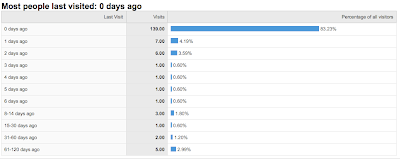
So, I had 139 new visitors today.
I have 7 visitors who were just on my shop yesterday.
I have 6 visitors who were just at my shop 2 days ago.
I have 1 visitor who were just at my shop 3 days ago
I have 1 visitor who were just at my shop 4 days ago
I have 1 visitor who were just at my shop 5 days ago
I have 1 visitor who were just at my shop 6 days ago
I have 3 visitor who were at my shop somewhere between 8-14 days ago.
I have 1 visitor who were at my shop somewhere between 15-30 days ago.
I have 2 visitor who were at my shop somewhere between 30-60 days ago.
I have 5 visitor who were at my shop somewhere between 61-120 days ago.
Any visitor that is a new visitor (never been to your shop before) will be categorized in the "0 days ago" data. Any returning visitors will be categorized based on when they were last in your shop. If a returning visitor comes to your shop multiple times in one day their visits will be counted in the "0 days ago" since technically they were just on your shop previously that day. There is a good example of this in the comment section if you would like more information.
Don't understand something I wrote about? Have a related question? Post a comment and I will be sure to answer it. Have an unrelated question? Submit it here and I will feature it on my blog!
xoxo
susan.
Visitor recency lets you track who is coming back to your shop. It is categorizing the visitors based on how much time has elapsed since their last visit.
If you have not viewed your recency data before, follow the instructions below to see it
- Log in to Google Analytics
- Click "View report"
- Click "Visitors"
- Click "Visitor Loyalty"
- Click "Recency"

So, I had 139 new visitors today.
I have 7 visitors who were just on my shop yesterday.
I have 6 visitors who were just at my shop 2 days ago.
I have 1 visitor who were just at my shop 3 days ago
I have 1 visitor who were just at my shop 4 days ago
I have 1 visitor who were just at my shop 5 days ago
I have 1 visitor who were just at my shop 6 days ago
I have 3 visitor who were at my shop somewhere between 8-14 days ago.
I have 1 visitor who were at my shop somewhere between 15-30 days ago.
I have 2 visitor who were at my shop somewhere between 30-60 days ago.
I have 5 visitor who were at my shop somewhere between 61-120 days ago.
Any visitor that is a new visitor (never been to your shop before) will be categorized in the "0 days ago" data. Any returning visitors will be categorized based on when they were last in your shop. If a returning visitor comes to your shop multiple times in one day their visits will be counted in the "0 days ago" since technically they were just on your shop previously that day. There is a good example of this in the comment section if you would like more information.
Don't understand something I wrote about? Have a related question? Post a comment and I will be sure to answer it. Have an unrelated question? Submit it here and I will feature it on my blog!
xoxo
susan.
Wednesday, June 17, 2009
How Shoppers View Your Shop
This idea was suggested by Isis
Shoppers may be viewing your shop differently than you see it based on their computer set-up. Many things will effect what they are seeing, such as, type of computer, operating system, screen size, graphics software, and screen resolution. A very simple way to make sure your shop looks great for a majority of your shoppers is to monitor their screen resolution. To do this follow the steps below:
Isis recommends this is a great tool to determine if your shop announcement is too long.
Wondering how to change your screen resolution? The instructions below are fairly general if the instructions do not work for your operating system please let me know and I can make some instructions for you.
If you have a PC running Windows follow these instructions:
Don't understand something I wrote about? Have a related question? Post a comment and I will be sure to answer it. Have an unrelated question? Submit it here and I will feature it on my blog!
xoxo
susan.
Shoppers may be viewing your shop differently than you see it based on their computer set-up. Many things will effect what they are seeing, such as, type of computer, operating system, screen size, graphics software, and screen resolution. A very simple way to make sure your shop looks great for a majority of your shoppers is to monitor their screen resolution. To do this follow the steps below:
- Log in to Google Analytics
- Click "View report"
- Click "Visitors"
- Click "Browser capabilities"
- Click "Screen resolutions"
Isis recommends this is a great tool to determine if your shop announcement is too long.
Wondering how to change your screen resolution? The instructions below are fairly general if the instructions do not work for your operating system please let me know and I can make some instructions for you.
If you have a PC running Windows follow these instructions:
- Right click on your desktop
- Choose "Properties"
- Click the "Settings" tab
- Click the apple
- Choose "System Preferences"
- Choose" Displays"
Don't understand something I wrote about? Have a related question? Post a comment and I will be sure to answer it. Have an unrelated question? Submit it here and I will feature it on my blog!
xoxo
susan.
Sunday, June 7, 2009
Using Site Overlay On Google Analytics
Site Overlay is a graphical view of where people clicked when they were in your shop. It is a little bit easier to get an idea of where people are clicking rather than looking at the text data on Google Analytics itself. To view your site overlay, follow the instructions below:
Don't understand something I wrote about? Have a related question? Post a comment and I will be sure to answer it. Have an unrelated question? Submit it here and I will feature it on my blog!
xoxo
susan.
- Log in to Google Analytics
- Click "View report"
- Click "Content" on the left
- Click "Site Overlay" a new window will pop-up
- Enter your shop website address in the search bar shown in the picture below (if the image is too small for you, just click it for a bigger version)

Don't understand something I wrote about? Have a related question? Post a comment and I will be sure to answer it. Have an unrelated question? Submit it here and I will feature it on my blog!
xoxo
susan.
Tuesday, June 2, 2009
Advanced Segments in Google Analytics
Within Google Analytics you may have noticed the "Advanced Segments" section on the left side of your menu. This feature allows you to track how people find you on etsy with a great deal of precision. Below you will find a detailed set of instructions:
To see the results follow the steps below:

More of a visual learner? Check out this video!
Don't understand something I wrote about? Have a related question? Post a comment and I will be sure to answer it. Have an unrelated question? Submit it here and I will feature it on my blog!
xoxo
susan.
- Log into Google Analytics
- Click "Advanced Segments" on the left side
- Click "Create new custom report"
- Under "Dimensions" click "Content"
- Drag the "Page" box to the Dimension slot (see image below)
- In the drop down menu select "Contains"
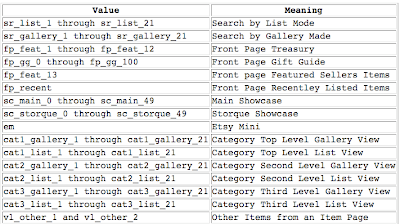
- In the Value box put "ref=sr" (More options for this text will be provided below)
- Click "Test Segment" which should cause some results to pop up
- In the "Name segment:" box put "search"
- Click "Create Segment"
- Follow steps 4-10 again but this time enter the text "ref=fp" in your value box and name it "front page"
- Follow steps 4-10 again but this time enter the text "ref=pounce" in your value box and name it "pounce"

To see the results follow the steps below:
- Click "Analytics Settings" at the top left
- Click "View Report"
- Click "Content"
- In the upper right corner click the "All Visits" menu
- Check off your new segments (see picture below)
- Click "Apply"


More of a visual learner? Check out this video!
Don't understand something I wrote about? Have a related question? Post a comment and I will be sure to answer it. Have an unrelated question? Submit it here and I will feature it on my blog!
xoxo
susan.
Friday, May 29, 2009
Finding View Counts of your Items Using Google Analytics
There are a number of ways to track your view counts for each item, but I find that Google Analytics allows me to view all of the information at once in a pretty understandable format. It is also a good way to track how many views each item got on a daily basis.
Please note that you can also do this by looking at individual items in your Etsy shop as well as by going to Craftcult.
If you would like to use Google Analytics to do this please follow the instructions below:
Don't understand something I wrote about? Have a related question? Post a comment and I will be sure to answer it. Have an unrelated question? Submit it here and I will feature it on my blog!
xoxo
susan.
Please note that you can also do this by looking at individual items in your Etsy shop as well as by going to Craftcult.
If you would like to use Google Analytics to do this please follow the instructions below:
- Log in to Google Analytics
- Click "View report"
- Click "Content"
- Click "Content by Title"
- Scroll down to the bottom and choose to view more rows (it defaults to 10)
Don't understand something I wrote about? Have a related question? Post a comment and I will be sure to answer it. Have an unrelated question? Submit it here and I will feature it on my blog!
xoxo
susan.
Thursday, May 28, 2009
How to Set-Up your Dashboard on Google Analytics
When you first log in to Google Analytics and view your report you are taken to your dashboard. Something you may not have noticed is that you can drag the boxes on your dashboard around to customize it. You can also delete and add new reports to your dashboard so you see only the things you want.
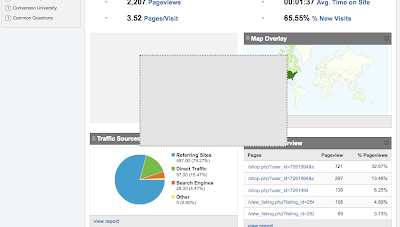
On your dashboard right below the "Site Usage" box you should see some more boxes. If you click and hold on the dark color on the top of each box, it will let you grab the box and you can move it to where ever you would like it to be. If there is a box on your dashboard that you don't want there you can click the little "x" in the upper right hand corner of the box.
The picture below illustrates dragging the "Visitors Overview" box around.
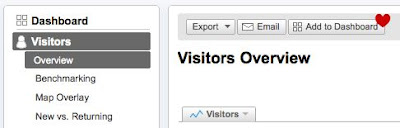
You can also add more boxes showing the information you want most. If you want to add a new box, first navigate to the information you would like to add by accessing the menus on the left of your Google Analytics page. Then click the "Add to Dashboard" button at the top of the screen as shown in the picture below.
Here is a quick example of how to add "All Traffic Sources" to your dashboard:
Don't understand something I wrote about? Have a related question? Post a comment and I will be sure to answer it. Have an unrelated question? Submit it here and I will feature it on my blog!
xoxo
susan.
On your dashboard right below the "Site Usage" box you should see some more boxes. If you click and hold on the dark color on the top of each box, it will let you grab the box and you can move it to where ever you would like it to be. If there is a box on your dashboard that you don't want there you can click the little "x" in the upper right hand corner of the box.
The picture below illustrates dragging the "Visitors Overview" box around.

You can also add more boxes showing the information you want most. If you want to add a new box, first navigate to the information you would like to add by accessing the menus on the left of your Google Analytics page. Then click the "Add to Dashboard" button at the top of the screen as shown in the picture below.

Here is a quick example of how to add "All Traffic Sources" to your dashboard:
- Log in to Google Analytics
- Click "Traffic Sources"
- Click "All Traffic Sources"
- Click "Add to Dashboard"
- Now click "Dashboard" and drag it to the location you desire
Don't understand something I wrote about? Have a related question? Post a comment and I will be sure to answer it. Have an unrelated question? Submit it here and I will feature it on my blog!
xoxo
susan.
Tuesday, May 26, 2009
How Etsy Shoppers Find Your Shop
You more than likely have seen some really bizarre keywords on your Google Analytics account. If you are wondering why, I have an article here: How to make your Etsy Google Friendly
Since our shops are under a main website (etsy.com), it is hard to figure out what keywords people used to find your specific shop on Etsy. The good news is that you can track how shoppers within Etsy find your shop using keywords.
To set this up, follow these steps (if the pictures are too small for you just click on them for bigger versions):
Don't understand something I wrote about? Have a related question? Post a comment and I will be sure to answer it. Have an unrelated question? Submit it here and I will feature it on my blog!
xoxo
susan.
Since our shops are under a main website (etsy.com), it is hard to figure out what keywords people used to find your specific shop on Etsy. The good news is that you can track how shoppers within Etsy find your shop using keywords.
To set this up, follow these steps (if the pictures are too small for you just click on them for bigger versions):
- Log-in to Google Analytics

- Click "edit" see the heart in the picture
- In the top right of the "Main Website Profile Information" box click "edit"
- Under "Site Search" change the settings to match the picture below
- Click "Save Changes"


- Log in to Google Analytics
- Click "View report"
- Click "Content"
- Click "Site Search"
Don't understand something I wrote about? Have a related question? Post a comment and I will be sure to answer it. Have an unrelated question? Submit it here and I will feature it on my blog!
xoxo
susan.
Wednesday, May 20, 2009
Should I share my data with Google?
Originally submitted by: StephRawson
Question #1: Is there a good reason to share your Google Analytics data with Google?
First of all, if anyone is interested in changing their data sharing preferences, one can do so by following the following steps:
There are two main reasons that people choose to share their data. The first is that it helps Google to make better software. If they have access to your data they can evaluate how you use their software to advance your store, which will help them to continually improve the software.
The second reason to share your data is to gain access to new and upcoming features within Google Analytics. If you share your data you have access to Benchmarking (I will have an article about this soon) and better service on Adwords, a pay-service that Google offers.
So, why shouldn't you share your data? If you were a big company, I would say to prevent your competitors from finding out all of your secrets. For Etsy stores, there really is no drawback unless you feel very strongly about keeping your data private. If you choose not to share any of your data, don't worry; this will not in any way effect your websites ranking on Google.
I personally choose to share my data. I am all about making software better and I think this is a good way to let Google know how my store is doing. Additionally, if my store does eventually take off I would be interested in using their Adwords program. If you feel somewhere in the middle about all of this I would recommend sharing your data anonyously, which will still help Google Analytics to improve but without associating your store with any data that Google obtains.
Don't understand something I wrote about? Have a related question? Post a comment and I will be sure to answer it. Have an unrelated question? E-mail me, and I will feature it on my blog!
xoxo
susan.
Question #1: Is there a good reason to share your Google Analytics data with Google?
First of all, if anyone is interested in changing their data sharing preferences, one can do so by following the following steps:
- Log in to Google Analytics
- Click "edit account settings" at the top of the page just to the right of the shop name
- Choose the options desired
There are two main reasons that people choose to share their data. The first is that it helps Google to make better software. If they have access to your data they can evaluate how you use their software to advance your store, which will help them to continually improve the software.
The second reason to share your data is to gain access to new and upcoming features within Google Analytics. If you share your data you have access to Benchmarking (I will have an article about this soon) and better service on Adwords, a pay-service that Google offers.
So, why shouldn't you share your data? If you were a big company, I would say to prevent your competitors from finding out all of your secrets. For Etsy stores, there really is no drawback unless you feel very strongly about keeping your data private. If you choose not to share any of your data, don't worry; this will not in any way effect your websites ranking on Google.
I personally choose to share my data. I am all about making software better and I think this is a good way to let Google know how my store is doing. Additionally, if my store does eventually take off I would be interested in using their Adwords program. If you feel somewhere in the middle about all of this I would recommend sharing your data anonyously, which will still help Google Analytics to improve but without associating your store with any data that Google obtains.
Don't understand something I wrote about? Have a related question? Post a comment and I will be sure to answer it. Have an unrelated question? E-mail me, and I will feature it on my blog!
xoxo
susan.
Tuesday, May 19, 2009
Google Organic vs. Google Referral
Question #1: I have noticed both "google / organic" and "google.com / referral" in my Google Analytics traffic sources. What is the difference between these two?
First, I am going to give some brief definitions of "organic" and "referral" and then I will explain how it relates to Google.
Organic: a visitor that comes from a free search engine listing
Referral: a link that points to your site from some other site
If they came from "google / organic" they used a keyword search, came across your shop, and subsequently clicked. e.g., if I searched for "hot pink jewelry" on google.com and followed a link to your etsy shop, that traffic would be recorded as "google/organic."
If they came from "google.com / referral" it is more than likely from your Google Base listing. It could also be from another pay service you have on Google's website.
Don't understand something I wrote about? Have a related question? Post a comment and I will be sure to answer it. Have an unrelated question? Submit it here and I will feature it on my blog!
xoxo
susan.
First, I am going to give some brief definitions of "organic" and "referral" and then I will explain how it relates to Google.
Organic: a visitor that comes from a free search engine listing
Referral: a link that points to your site from some other site
If they came from "google / organic" they used a keyword search, came across your shop, and subsequently clicked. e.g., if I searched for "hot pink jewelry" on google.com and followed a link to your etsy shop, that traffic would be recorded as "google/organic."
If they came from "google.com / referral" it is more than likely from your Google Base listing. It could also be from another pay service you have on Google's website.
Don't understand something I wrote about? Have a related question? Post a comment and I will be sure to answer it. Have an unrelated question? Submit it here and I will feature it on my blog!
xoxo
susan.
Etsy Finds E-mail and Google Analytics
Question #1: I have noticed "etsy finds / email" in my traffic sources does this mean they featured me?
For starters, in case you are curious "etsy finds" is a daily e-mail that Etsy sends out showcasing products and gift ideas. It is also known to offer special discounts. If you are interested in signing up to receive this e-mail you can go here: etsy finds e-mail sign-up
Having this in your traffic sources could, but more than likely does not, mean that you were featured. If someone clicks on an item in the "etsy finds" e-mail and then later ends up at your shop, that traffic source will show up on your Google Analytics.
Don't understand something I wrote about? Have a related question? Post a comment and I will be sure to answer it. Have an unrelated question? E-mail me, and I will feature it on my blog!
xoxo
susan.
For starters, in case you are curious "etsy finds" is a daily e-mail that Etsy sends out showcasing products and gift ideas. It is also known to offer special discounts. If you are interested in signing up to receive this e-mail you can go here: etsy finds e-mail sign-up
Having this in your traffic sources could, but more than likely does not, mean that you were featured. If someone clicks on an item in the "etsy finds" e-mail and then later ends up at your shop, that traffic source will show up on your Google Analytics.
Don't understand something I wrote about? Have a related question? Post a comment and I will be sure to answer it. Have an unrelated question? E-mail me, and I will feature it on my blog!
xoxo
susan.
Sunday, May 17, 2009
Google Analytics Hourly Data
Originally inspired by: minipotterybyanita
Question #1: How do you view hourly data on Google Analytics?
Don't understand something I wrote about? Have a related question? Post a comment and I will be sure to answer it. Have an unrelated question? E-mail me, and I will feature it on my blog!
xoxo
susan.
Question #1: How do you view hourly data on Google Analytics?
- Log in to Google Analytics
- Click "View report"
- Click "Visitors"
- Click "Visitor Trending"
- Click "Visits"
- In the upper right, click the clock next to "Graph by"
Don't understand something I wrote about? Have a related question? Post a comment and I will be sure to answer it. Have an unrelated question? E-mail me, and I will feature it on my blog!
xoxo
susan.
Thursday, May 14, 2009
How to See Up to Date Statistics on Google Analytics
If you usually wait until the next day to see your Google Analytics statistics, this post will outline how to see current statistics.
The statistics are not updated continuously, but you can see some of your daily statistics before the end of the day.
1. Log in to Google Analytics
2. Click "View report"
3. Click on the date range in the upper right-hand corner and choose the current date
4. Click the "Apply" button
Don't understand something I wrote about? Have a related question? Post a comment and I will be sure to answer it. Have an unrelated question? E-mail me, and I will feature it on my blog!
xoxo
susan.
The statistics are not updated continuously, but you can see some of your daily statistics before the end of the day.
1. Log in to Google Analytics
2. Click "View report"
3. Click on the date range in the upper right-hand corner and choose the current date
4. Click the "Apply" button
Don't understand something I wrote about? Have a related question? Post a comment and I will be sure to answer it. Have an unrelated question? E-mail me, and I will feature it on my blog!
xoxo
susan.
Wednesday, May 13, 2009
On Google Analytics, what is the "Other" category in traffic sources?
Originally inspired by: befriendmantic
Question #1: What is the "Other" category in traffic sources?
The "Other" category encompasses everything that does not fall into Direct Traffic, Referring Sites, and Search Engines. The most common "Other" listing is e-mail.
You can see all of the sources by following these steps ..
From this you should be able to pick out all the sources that would fall into "Other." Scroll through your list and look for the text after the slash. If it says something other than referral, direct, or search engine (google.com, etc.) then it means that it falls into the "Other" category.
Don't understand something I wrote about? Have a related question? Post a comment and I will be sure to answer it. Have an unrelated question? E-mail me, and I will feature it on my blog!
xoxo
susan.
Question #1: What is the "Other" category in traffic sources?
The "Other" category encompasses everything that does not fall into Direct Traffic, Referring Sites, and Search Engines. The most common "Other" listing is e-mail.
You can see all of the sources by following these steps ..
- Log in to Google Analytics
- Click Traffic Sources
- On the page, scroll down a bit to the "Sources" table. Below that, click the link that says "view full report"
- Scroll down to the bottom again and choose a higher number of rows (it is probably at 10 right now). You can view up to 500.
From this you should be able to pick out all the sources that would fall into "Other." Scroll through your list and look for the text after the slash. If it says something other than referral, direct, or search engine (google.com, etc.) then it means that it falls into the "Other" category.
Don't understand something I wrote about? Have a related question? Post a comment and I will be sure to answer it. Have an unrelated question? E-mail me, and I will feature it on my blog!
xoxo
susan.
Saturday, May 9, 2009
Google Analytics Questions
Originally submitted by: piddix
Question #1: Using Google Analytics, is there a way to tell who has made it to a shopping cart page?
Google Analytics does have an e-commerce tracking system built in for you to track shopping carts. However, since Etsy does not give us html control of our shops it is not possible to track your shopping cart using Google Analytics.
This is a quote directly from Etsy: "No, at this time we do not support e-commerce conversion tracking, however we are actively reviewing how to enable conversion tracking for sellers through Google Analytics."
I would predict that at sometime in the future this will be made available to us.
Question #2: Using Google Analytics, can I see what pages a group of people have looked at?
You can see who has looked at certain pages on your shop.
If you click on the blue link for each of your pages you will be able to see more detailed information. From here click "Navigation Summary" part way down the page on the right-hand side. This will tell you what page they went to next or if they left your shop.
Furthermore, if you would like to see everything a specific user did, click on "Entrance Paths" instead of "Navigation Summary." You can then select a page by clicking on it and it will tell you where they went next.
This tool should help you track how visitors move around in your site.
Unfortunately, as Etsy users we do not have a lot of the flexibility that is built into Google Analytics, like tracking where visitors coming from craftcult.com end up. I am crossing my fingers for some more functionality soon.
Don't understand something I wrote about? Have a related question? Post a comment and I will be sure to answer it. Have an unrelated question? Submit it here and I will feature it on my blog!
xoxo
susan.
Question #1: Using Google Analytics, is there a way to tell who has made it to a shopping cart page?
Google Analytics does have an e-commerce tracking system built in for you to track shopping carts. However, since Etsy does not give us html control of our shops it is not possible to track your shopping cart using Google Analytics.
This is a quote directly from Etsy: "No, at this time we do not support e-commerce conversion tracking, however we are actively reviewing how to enable conversion tracking for sellers through Google Analytics."
I would predict that at sometime in the future this will be made available to us.
Question #2: Using Google Analytics, can I see what pages a group of people have looked at?
You can see who has looked at certain pages on your shop.
- Log into Google Analytics
- Click on "View report"
- Click on "Content"
- Click on "Top Landing Pages"
If you click on the blue link for each of your pages you will be able to see more detailed information. From here click "Navigation Summary" part way down the page on the right-hand side. This will tell you what page they went to next or if they left your shop.
Furthermore, if you would like to see everything a specific user did, click on "Entrance Paths" instead of "Navigation Summary." You can then select a page by clicking on it and it will tell you where they went next.
This tool should help you track how visitors move around in your site.
Unfortunately, as Etsy users we do not have a lot of the flexibility that is built into Google Analytics, like tracking where visitors coming from craftcult.com end up. I am crossing my fingers for some more functionality soon.
Don't understand something I wrote about? Have a related question? Post a comment and I will be sure to answer it. Have an unrelated question? Submit it here and I will feature it on my blog!
xoxo
susan.
Friday, May 8, 2009
How to Add More Sites to Google Analytics
Originally inspired by: hamptongraphics
Question #1: I have two Etsy shops. How do I set the second one up on Google Analytics?
Question #2: I have a blog on blogspot. How do I track it with Google Analytics?
Don't understand something I wrote about? Have a related question? Post a comment and I will be sure to answer it. Have an unrelated question? Submit it here and I will feature it on my blog!
xoxo
susan.
Question #1: I have two Etsy shops. How do I set the second one up on Google Analytics?
- Log into Google Analytics
- Under Account Overview and towards the right-side of the page click "+add new profile"
- Choose "Add a Profile for an existing domain"
- Select www.etsy.com from the drop down menu
- Enter your second shops name (or whatever you would like to call this profile)
- Click continue
- Back on the overview page you should see a UA number for this new profile; copy it
- Log in to Etsy, Click "Your Etsy," Click "Web Analytics" under Shop Setup
- Paste in your UA number and save
Question #2: I have a blog on blogspot. How do I track it with Google Analytics?
- Log into Google Analytics
- Under Account Overview and towards the right-side of the page click "+add new profile"
- Choose "Add a Profile for a new domain"
- Enter the exact address of your blog
- Click continue
- Copy the javascript code and log into blogspot
- Click the "Layout" tab
- Click "edit html"
- Scroll down to the very bottom right above "< /body>"
- Paste in the javascript code and save
Don't understand something I wrote about? Have a related question? Post a comment and I will be sure to answer it. Have an unrelated question? Submit it here and I will feature it on my blog!
xoxo
susan.
Thursday, May 7, 2009
Page views, hits, visits .. whats the difference?
This post was inspired by: savvystitcher
Google Analytics provides you a lot of information and sometimes it's a bit difficult to figure out what it all means. This post will give you a quick description of some common terms.
web server: a computer program that is responsible for accepting requests from clients
hit: when a web server sends a file to a browser
page view: every time a visitor views a web page on your website
visit: when someone visits your website; a visit consists of one or more page views/hits.
visitor: for our purposes, a human
unique visitor: a specific visitor; cookies are used to track the uniqueness of the visitor
Don't understand something I wrote about? Have a related question? Post a comment and I will be sure to answer it. Have an unrelated question? E-mail me, and I will feature it on my blog!
xoxo
susan.
Google Analytics provides you a lot of information and sometimes it's a bit difficult to figure out what it all means. This post will give you a quick description of some common terms.
web server: a computer program that is responsible for accepting requests from clients
hit: when a web server sends a file to a browser
page view: every time a visitor views a web page on your website
visit: when someone visits your website; a visit consists of one or more page views/hits.
visitor: for our purposes, a human
unique visitor: a specific visitor; cookies are used to track the uniqueness of the visitor
Don't understand something I wrote about? Have a related question? Post a comment and I will be sure to answer it. Have an unrelated question? E-mail me, and I will feature it on my blog!
xoxo
susan.
Wednesday, May 6, 2009
How to make your Etsy Google Friendly
Originally submitted by: particlesofstone
Question #1: "Why does Google Analytics show keywords that are not related to my website?"
If you log into your Google Analytics account and click on "Traffic Sources" and then "Keywords" you can see all the keywords that people used to arrive at your website. You will always have at least a small amount of keywords that do not relate to your website at all -- but your goal should be to have as few of these as possible. Why this happens is a bit complicated.
I will give you an example: say there is a listing for a handmade wooden chair and someone arrived at that site from the keyword "Andy Mathis." The site is not related to Andy Mathis but a website might website that Google indexes might have something related to both Andy Mathis and wooden chairs. Because of this fact, Google may think that the chair listing could interest someone searching for Andy Mathis and will return it as a result. This is just one possibility.
Another reason this may happen is Google might think they misspelled their search. If this happens, Google will guess what they were really looking for which might end up being a keyword on your site.
Also, not all users who searched for a keyword went directly to your site. If a user searches for an item and then clicks on an Etsy link and then later ends up on your Etsy shop then that keyword will show up as leading to your shop. To see keywords that went directly to your shop you need to set-up Site Search on Google Analytics.
All in all, Google's methods of producing search results is top secret and we may never know how it all works!
If you have a high percentage of traffic from an unrelated keyword you may want to try researching these negative keywords. By this I mean choose one of the keywords that you do not think should lead to your website and search for it in Google. If you end up finding your site based on this keyword then try and click on similar links and see why they might have caused your website to appear. If you find keywords on these other websites that appear on your website then you could try and remove them to reduce that traffic. If you cannot find your Etsy shop based off of the keyword, don't worry; this is pretty common because Google searches are unique to the user. Different IP addresses, cities, states and countries mean different data centers which results in different search results.
Question #2: "How do I help my shop to appear higher in Google searches?"
The best way to do this is by doing your own research. What would your customers be searching for in Google if they wanted to see your item? Here is a neat tool that helps you come up with good keywords: https://adwords.google.com/select/KeywordToolExternal.
Okay, now what do you do with these keywords? You need to work them into your listing somehow -- usually in the title and the description. Etsy does have tags but most search engines put these tags very low on their list. So even if you tag all of your Etsy items Google will more than likely not even look at those tags. So you should focus on making your item titles and descriptions search engine friendly. Etsy tags are still useful for people searching the Etsy site but will not help with your Google results.
So, you say, why not make your titles and descriptions with every word possible so you get lots of Google results? Well, because it is a give and take relationship. If I make a long obnoxious title that allows my item to come up first on Google it will also more than likely result in annoyed customers on Etsy .. I mean, who wants to read a 10-word title? So you should find a nice middle ground.
Here is a good example:
You are listing a tetris magnet set and you use a title of "Tetris Magnet Set." A more search engine friendly title would be "Tetris Magnet Set, Handmade Perler Beads" and an obnoxious title would be "handmade tetris magnet set perler hama fun fridge nintendo".
Another important factor in Google searches is the number of people who actually visit and do not bounce from a website. If a site has high traffic and a low bounce rate then Google will list it higher in the search return. So you need to put your site out there -- advertising and promoting while at the same time aiming for a low bounce rate. Improving your keywords will help your bounce rate decrease because it will increase the chances that people who find your site through Google were actually looking for something like it.
Additionally, I find Craigslist to be a great tool in improving my rank in Google. You can post a link to your Etsy shop in your Craigslist add, and including keywords is common practice for most users.
Finally, if you are interested in being in Google Shopping results you need to set-up a Google Base Account. I have detailed instructions here: What is Google Base? How do I set it up?
Don't understand something I wrote about? Have a related question? Post a comment and I will be sure to answer it. Have an unrelated question? E-mail me, and I will feature it on my blog!
xoxo
susan.
Question #1: "Why does Google Analytics show keywords that are not related to my website?"
If you log into your Google Analytics account and click on "Traffic Sources" and then "Keywords" you can see all the keywords that people used to arrive at your website. You will always have at least a small amount of keywords that do not relate to your website at all -- but your goal should be to have as few of these as possible. Why this happens is a bit complicated.
I will give you an example: say there is a listing for a handmade wooden chair and someone arrived at that site from the keyword "Andy Mathis." The site is not related to Andy Mathis but a website might website that Google indexes might have something related to both Andy Mathis and wooden chairs. Because of this fact, Google may think that the chair listing could interest someone searching for Andy Mathis and will return it as a result. This is just one possibility.
Another reason this may happen is Google might think they misspelled their search. If this happens, Google will guess what they were really looking for which might end up being a keyword on your site.
Also, not all users who searched for a keyword went directly to your site. If a user searches for an item and then clicks on an Etsy link and then later ends up on your Etsy shop then that keyword will show up as leading to your shop. To see keywords that went directly to your shop you need to set-up Site Search on Google Analytics.
All in all, Google's methods of producing search results is top secret and we may never know how it all works!
If you have a high percentage of traffic from an unrelated keyword you may want to try researching these negative keywords. By this I mean choose one of the keywords that you do not think should lead to your website and search for it in Google. If you end up finding your site based on this keyword then try and click on similar links and see why they might have caused your website to appear. If you find keywords on these other websites that appear on your website then you could try and remove them to reduce that traffic. If you cannot find your Etsy shop based off of the keyword, don't worry; this is pretty common because Google searches are unique to the user. Different IP addresses, cities, states and countries mean different data centers which results in different search results.
Question #2: "How do I help my shop to appear higher in Google searches?"
The best way to do this is by doing your own research. What would your customers be searching for in Google if they wanted to see your item? Here is a neat tool that helps you come up with good keywords: https://adwords.google.com/select/KeywordToolExternal.
Okay, now what do you do with these keywords? You need to work them into your listing somehow -- usually in the title and the description. Etsy does have tags but most search engines put these tags very low on their list. So even if you tag all of your Etsy items Google will more than likely not even look at those tags. So you should focus on making your item titles and descriptions search engine friendly. Etsy tags are still useful for people searching the Etsy site but will not help with your Google results.
So, you say, why not make your titles and descriptions with every word possible so you get lots of Google results? Well, because it is a give and take relationship. If I make a long obnoxious title that allows my item to come up first on Google it will also more than likely result in annoyed customers on Etsy .. I mean, who wants to read a 10-word title? So you should find a nice middle ground.
Here is a good example:
You are listing a tetris magnet set and you use a title of "Tetris Magnet Set." A more search engine friendly title would be "Tetris Magnet Set, Handmade Perler Beads" and an obnoxious title would be "handmade tetris magnet set perler hama fun fridge nintendo".
Another important factor in Google searches is the number of people who actually visit and do not bounce from a website. If a site has high traffic and a low bounce rate then Google will list it higher in the search return. So you need to put your site out there -- advertising and promoting while at the same time aiming for a low bounce rate. Improving your keywords will help your bounce rate decrease because it will increase the chances that people who find your site through Google were actually looking for something like it.
Additionally, I find Craigslist to be a great tool in improving my rank in Google. You can post a link to your Etsy shop in your Craigslist add, and including keywords is common practice for most users.
Finally, if you are interested in being in Google Shopping results you need to set-up a Google Base Account. I have detailed instructions here: What is Google Base? How do I set it up?
Don't understand something I wrote about? Have a related question? Post a comment and I will be sure to answer it. Have an unrelated question? E-mail me, and I will feature it on my blog!
xoxo
susan.
Google Analytics Basics
Google Analytics is a tool to help you keep data on who is looking at your page. You can use this to track how well advertising is working. I also use it to make myself feel a little bit better when my sales are down (e.g., at least 100 people looked at my page today.)
Question #1 "How do I tell Google Analytics to ignore my own views"
In order for these instructions to work you must have a static IP.
If you have a PC running windows you can find out if your IP is static by following these instructions:
If you have determined that you have a static IP then the instructions below will work for you. If you have a dynamic ip please use these instructions.
Log into Google Analytics. Toward the bottom right click the blue link titled "Filter Manager." On the right side of the long gray box click "Add Filter."
a. Name the filter whatever you would like; I named mine "me"
b. Under filter type select "Exclude all traffic from an IP address"
Okay, now you need to open up a new window.
First go to http://www.whatismyip.com/ and copy the IP address that is displayed.
Now go to http://www.google.com/support/googleanalytics/bin/answer.py?hl=en&answer=55572 and paste your IP address into "First IP address" and then click "Generate RegEx." Now copy the characters displayed in "Step 3."
c. Paste the regular expression you just generated into the field titled "Regular Expression for the IP addresses."
d. Below that, in the box, click www.etsy.com.
e. Click the "add" button to the right.
f. Click "Save Changes."
Congratulations, your views will no longer be included in your site statistics!
Question #2 "What is bounce rate?"
Bounce rate is a term to classify the visitors to your website. If a user comes to any section of your website (e.g., your shop home) and then leaves without going anywhere else on your site (e.g., your fancy necklace listing), then they bounced. Alternatively, if a user arrives at your shop home and then clicks on your fancy necklace listing, then they did NOT bounce.
So, your bounce rate tells you how many people decided to explore your site further then their original destination.
Example: Say your daily bounce rate is 60% and you had a total of 100 visitors that day. That means that 60 people came to your site and then left without looking any further into your website -- but it also means that 40 people explored around on your website.
More of a visual learner? Check out this video!
Don't understand something I wrote about? Have a related question? Post a comment and I will be sure to answer it. Have an unrelated question? Submit it here and I will feature it on my blog!
xoxo
susan.
Question #1 "How do I tell Google Analytics to ignore my own views"
In order for these instructions to work you must have a static IP.
If you have a PC running windows you can find out if your IP is static by following these instructions:
- Click "Start"
- Select "RUN"
- type "ncpa.cpl" and press ENTER
- under the Network Connections Window double click your LAN/Internet Connection and select SUPPORT tab.
- If you see an address type assigned by DHCP then your ip is dynamic, otherwise it is static.
- Click the apple
- Select "System Preferences"
- Click "Network" it is under "Internet & Network"
- For the "Show" drop down, select "Show built-in ethernet" or "Airport" depending on how you connect
- If you have a DHCP client number than your IP is dynamic otherwise it is static
If you have determined that you have a static IP then the instructions below will work for you. If you have a dynamic ip please use these instructions.
Log into Google Analytics. Toward the bottom right click the blue link titled "Filter Manager." On the right side of the long gray box click "Add Filter."
a. Name the filter whatever you would like; I named mine "me"
b. Under filter type select "Exclude all traffic from an IP address"
Okay, now you need to open up a new window.
First go to http://www.whatismyip.com/ and copy the IP address that is displayed.
Now go to http://www.google.com/support/googleanalytics/bin/answer.py?hl=en&answer=55572 and paste your IP address into "First IP address" and then click "Generate RegEx." Now copy the characters displayed in "Step 3."
c. Paste the regular expression you just generated into the field titled "Regular Expression for the IP addresses."
d. Below that, in the box, click www.etsy.com.
e. Click the "add" button to the right.
f. Click "Save Changes."
Congratulations, your views will no longer be included in your site statistics!
Question #2 "What is bounce rate?"
Bounce rate is a term to classify the visitors to your website. If a user comes to any section of your website (e.g., your shop home) and then leaves without going anywhere else on your site (e.g., your fancy necklace listing), then they bounced. Alternatively, if a user arrives at your shop home and then clicks on your fancy necklace listing, then they did NOT bounce.
So, your bounce rate tells you how many people decided to explore your site further then their original destination.
Example: Say your daily bounce rate is 60% and you had a total of 100 visitors that day. That means that 60 people came to your site and then left without looking any further into your website -- but it also means that 40 people explored around on your website.
More of a visual learner? Check out this video!
Don't understand something I wrote about? Have a related question? Post a comment and I will be sure to answer it. Have an unrelated question? Submit it here and I will feature it on my blog!
xoxo
susan.
Subscribe to:
Posts (Atom)
